The setColorLUT method
| Syntax: | setColorLUT(string colorLUT, number time) |
|---|---|
| Returns: | nil |
A Lookup Table (LUT) image can be used to apply color correction to a character sprite. This allows you to alter the color of your characters so that they match the lightning conditions of the background.
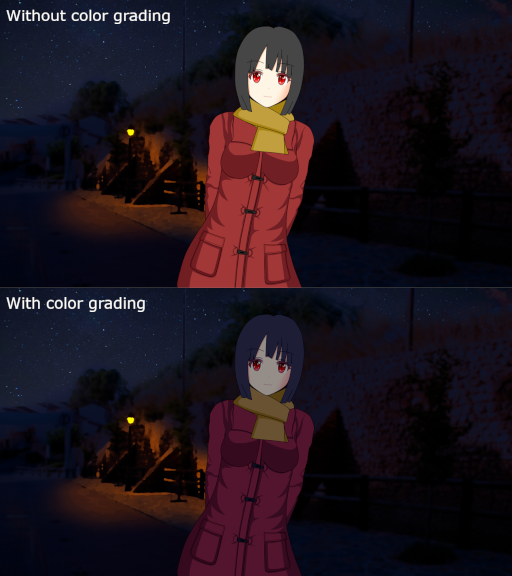
You can also create other interesting effects such as drawing your characters in grayscale.
In order to create a LUT image, you’ll need an image editing application such as Photoshop or GIMP.
Open a representative image of your game in this application and use adjustment layers to apply any color grading effects you want for your character.
Once you’ve achieved your desired look, open a copy of the Neutral Color LUT on its own.

Neutral Color LUT (right-click and Save as)
Copy the adjustment layers to the Neutral Color LUT. This way, you will apply those color grading effects to this image.
Now, save your LUT with a new name. Any character sprites that use this LUT for color grading will receive the same color grading effects you applied to the image.
If your image editing application doesn’t support adjustment layers, you’ll need to apply the color grading effects directly to the Neutral Color LUT.
Parameters
| Type | Name | Description |
|---|---|---|
| string | colorLUT | The color lookup table image to use; see remarks for details |
| number | time | The duration in seconds of the color grading transition |
Remarks
The path of the colorLUT parameter must be relative to the luts path specified in the config file.
Color grading transitions are always non-blocking. If you call this method while a color grading transition is taking place, that transition will be finished instantly before starting the new one.
Examples
-- Define a character sprite
sakura = CharacterSprite.new("sakura1.png")

-- Show the background and the sprite without color grading
scene("street day.png")
sakura:show("normal")
say "Day."

-- Change the background to an evening setting at the same time
-- we change the color grading of our character
setBackground("street evening.png")
sakura:setColorLUT("evening.png", 0.5)
say "Evening."

-- Change the background to a night setting at the same time
-- we change the color grading of our character
setBackground("street night.png")
sakura:setColorLUT("night.png", 0.5)
say "Night."